The five buttons at the bottom. They never change. Tap one and the page changes — that is all they do, and you cannot break anything by tapping them.
- Tasks — your list of things to do. This is the main page.
- Calendar — everything with a day, laid out by month.
- Meds — medicines to take, and when.
- Group — the people you share with. Empty at first, and that is fine.
- Settings — your name, the colours, signing out, and where History moved to.
Part 1 — Just you
1.Make your account
You do not need anybody else to use Goodlist. It works perfectly well on your own.
Open Goodlist. The first thing it asks is who you are.
- Type your name in the first box. You can skip this one.
- Type your email in the second box.
- Make up a password and type it twice, so the app knows you did not mistype it. It has to be 6 letters or numbers or more.
- Tap Create account.
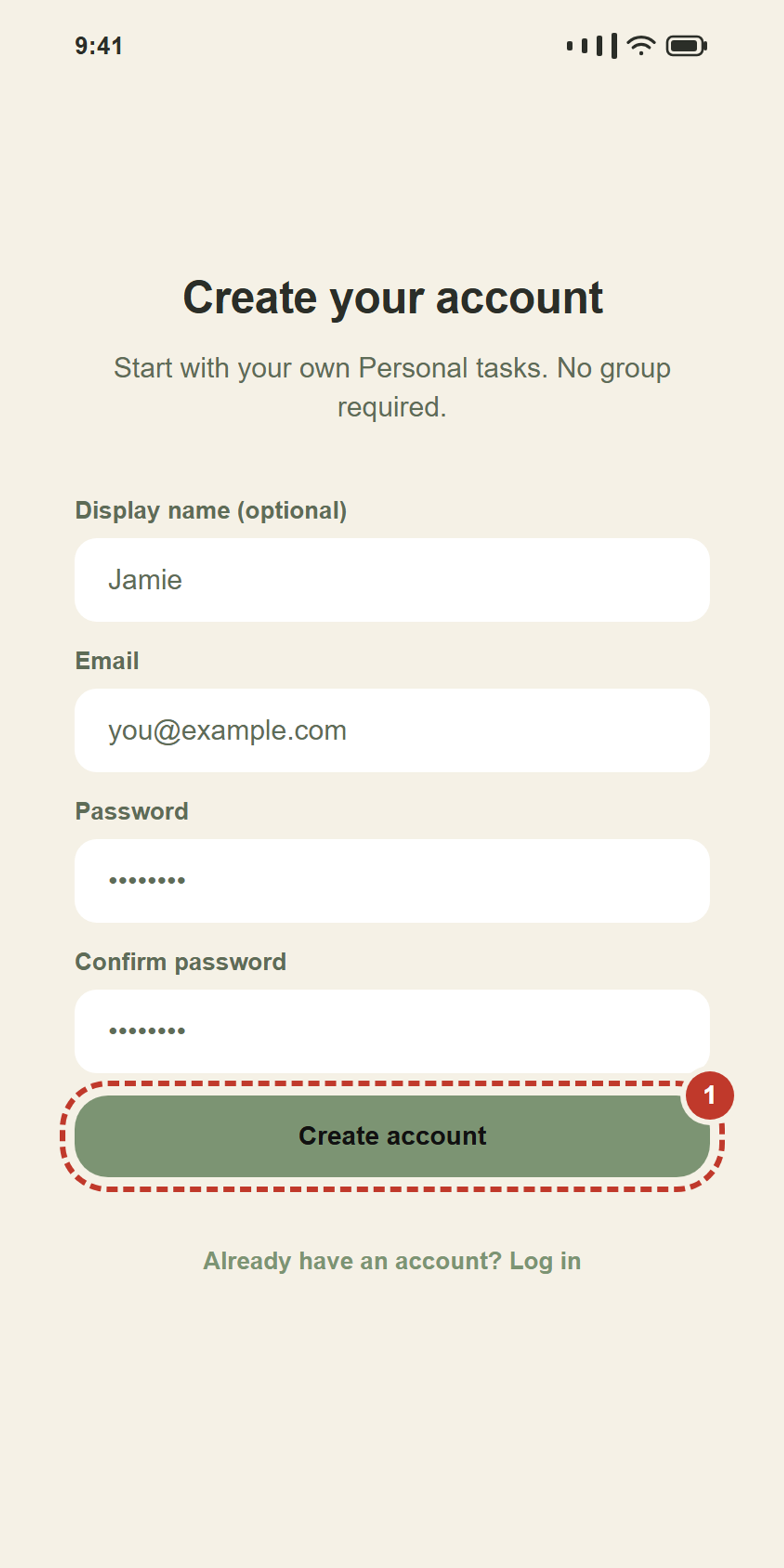
Rather not make a password? Tap Continue with Google or Continue with Facebook instead, and say yes on the page that opens. Your name comes across from there — you can change it later in Settings.
2.Log in
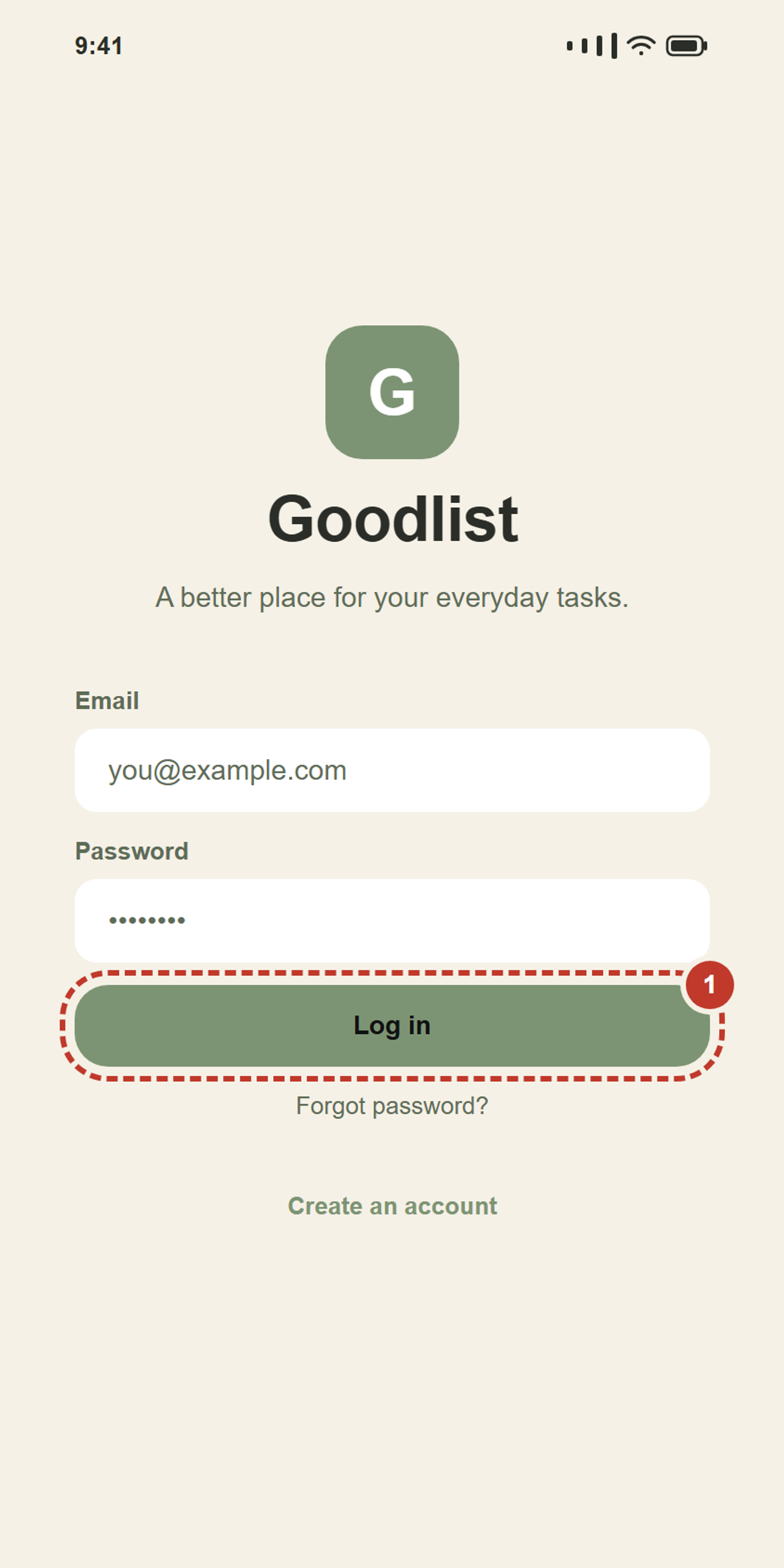
Already made an account? Type your email and password, then tap Log in. You only have to do this once — the app remembers you afterwards. Tap the eye in the password box to see what you typed. If you joined with Google or Facebook, tap that button again instead.
3.Add your first thing to do
The page says Solo mode at the top. Solo just means on your own. The list is empty because you have not put anything in it yet.
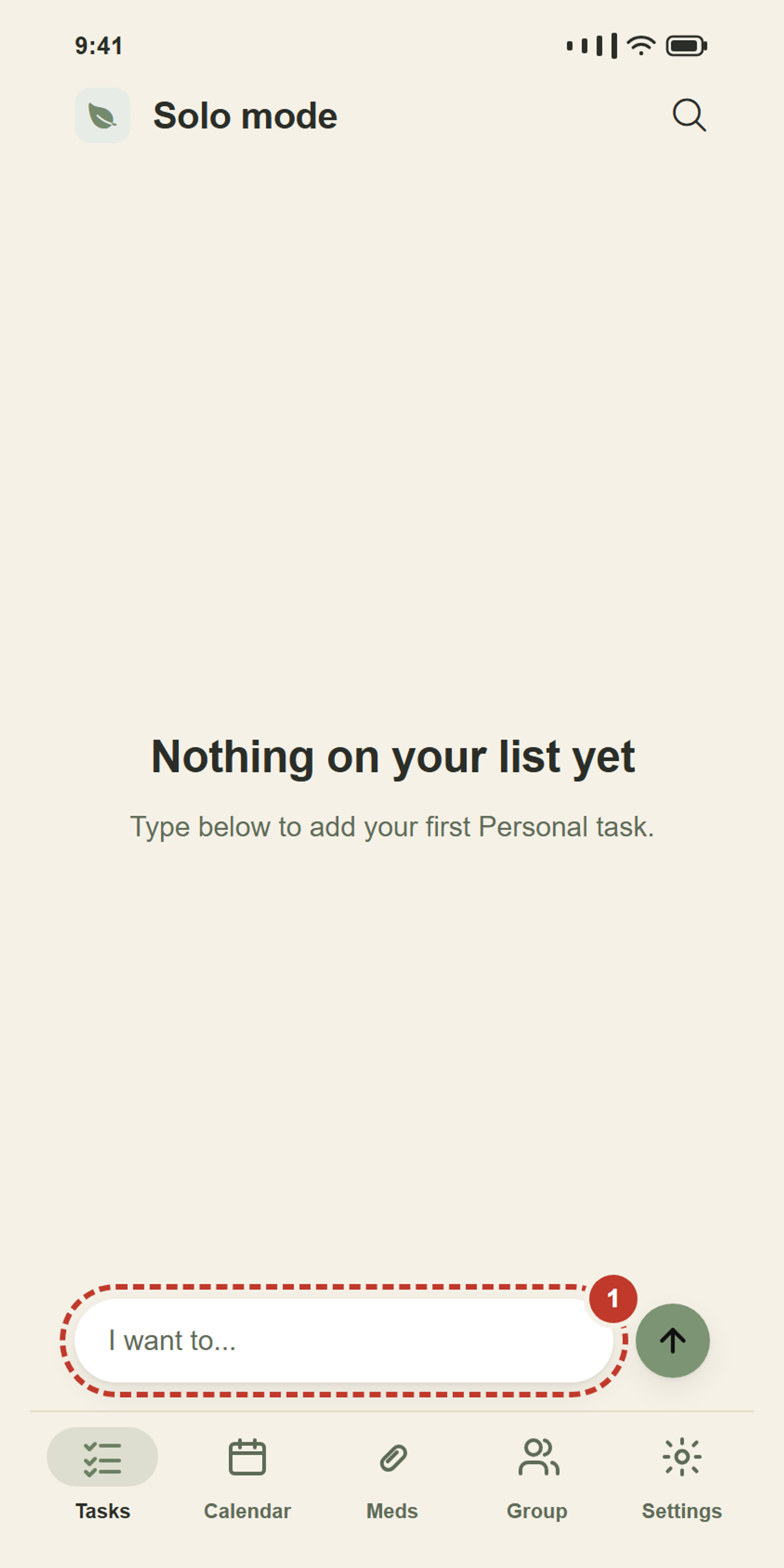
At the bottom there is a long white box that says I want to...
- Tap that box. The keyboard comes up.
- Type the thing you want to do. Anything at all.
- Tap the round green arrow next to the box.
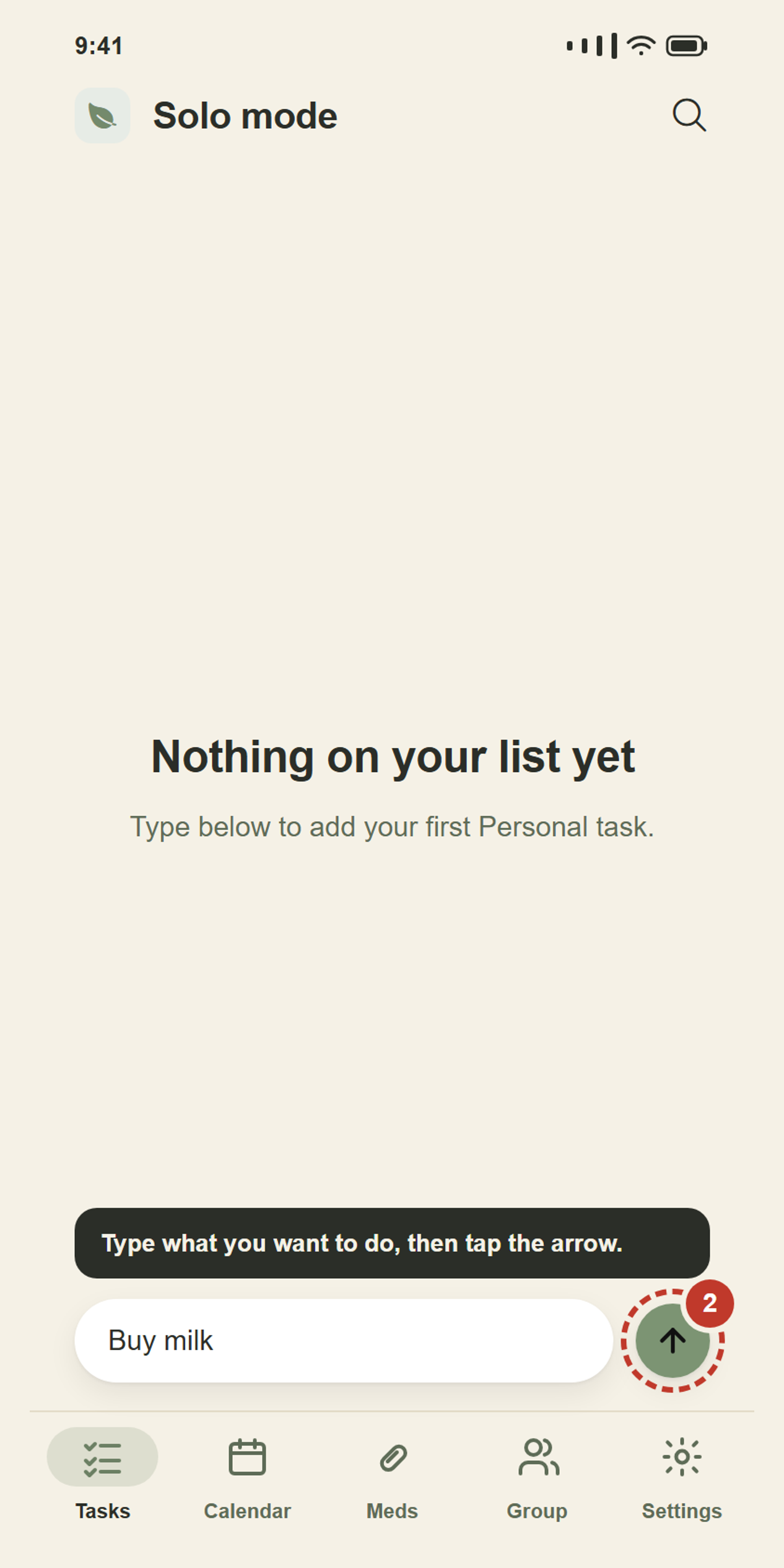
That is it. The box empties itself so you can type the next one straight away. Add as many as you like.
4.Say it instead of typing
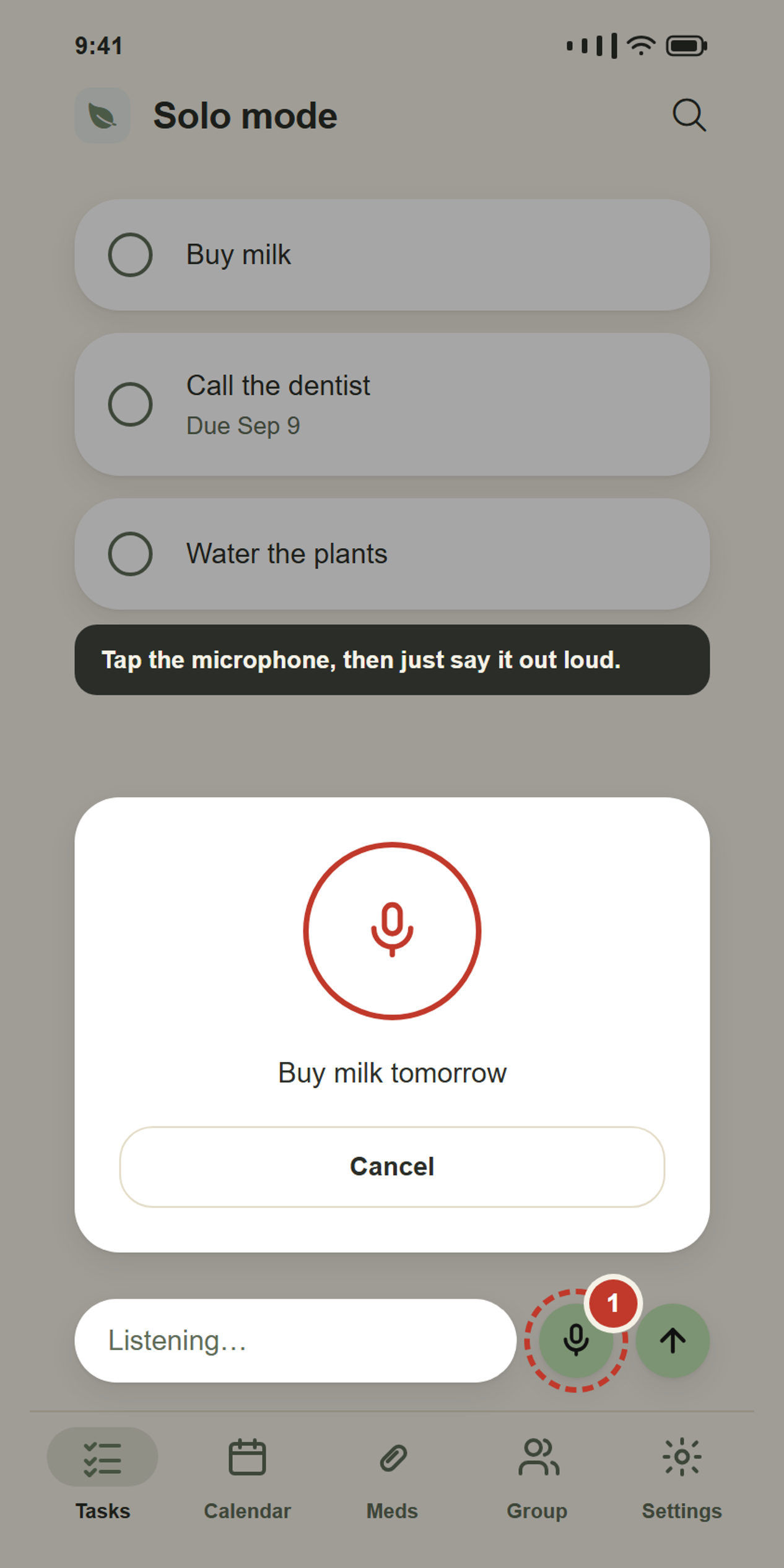
Next to the typing box there is a microphone. Tap it and say the thing out loud, instead of typing it.
- Tap the microphone. The very first time, your phone asks whether Goodlist may use it — tap Allow.
- Say what you want to do. “Buy milk tomorrow.”
- A panel shows you the words it heard, so you can check them.
It understands a few other things too:
- “Add call the vet on Friday” — makes a task, due that day.
- “Remind me to take out the bins at 8pm” — makes a task with the alarm already turned on, so your phone rings at that time.
- “Finish the laundry” — ticks that one off for you.
- “Undo” — puts back the last thing you ticked.
- “Delete the milk one” — asks you first, then deletes it.
- “Open history” — goes to another page.
- “Ask Alex to pick up the kids” — once you have a group (Part 2).
5.Look at your list
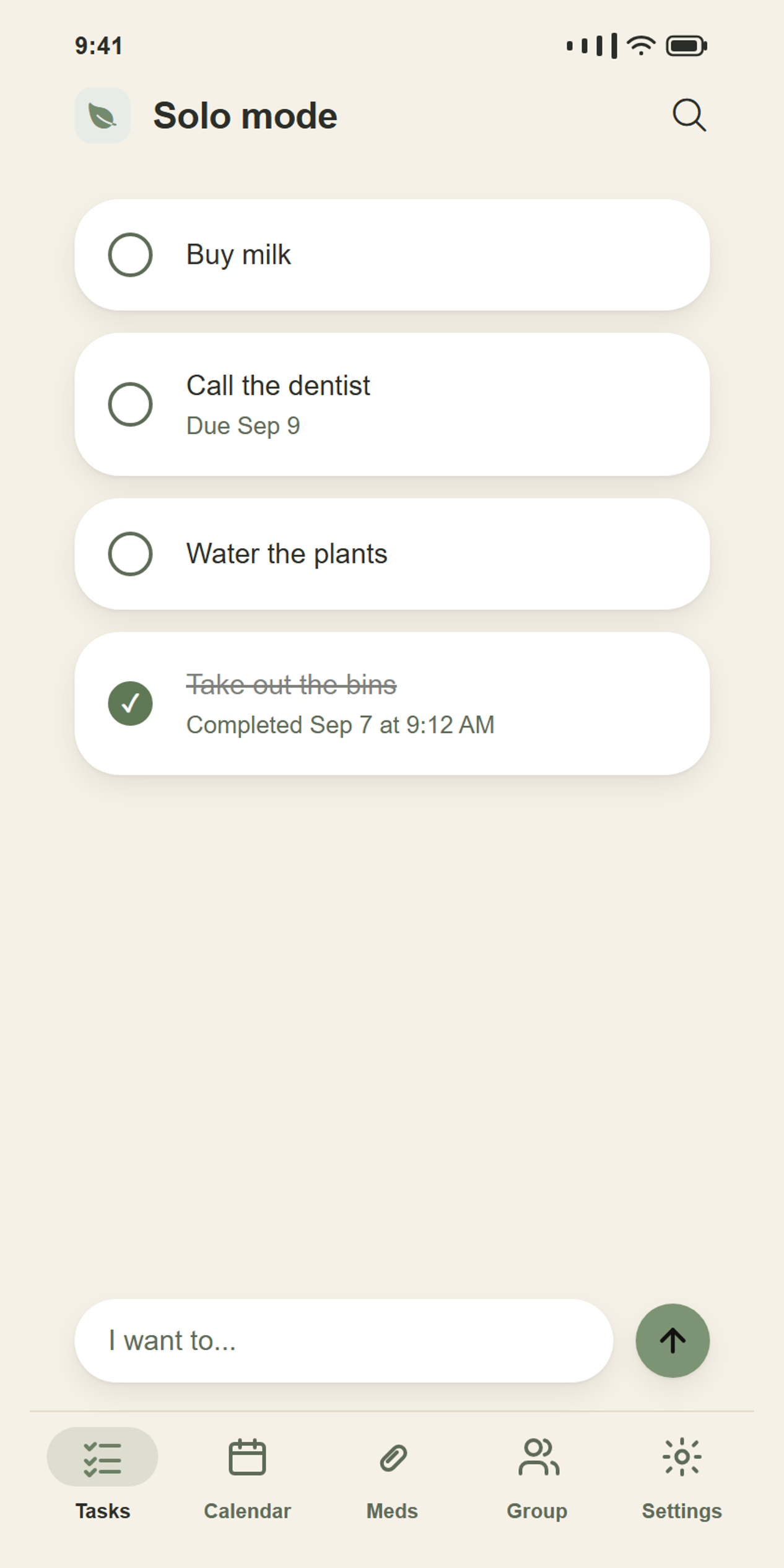
Every task sits on its own little white card.
- The empty circle on the left means not done yet.
- Small grey writing underneath tells you extra things, like a due date.
- A task with a line through it is one you already finished.
6.Tick something off
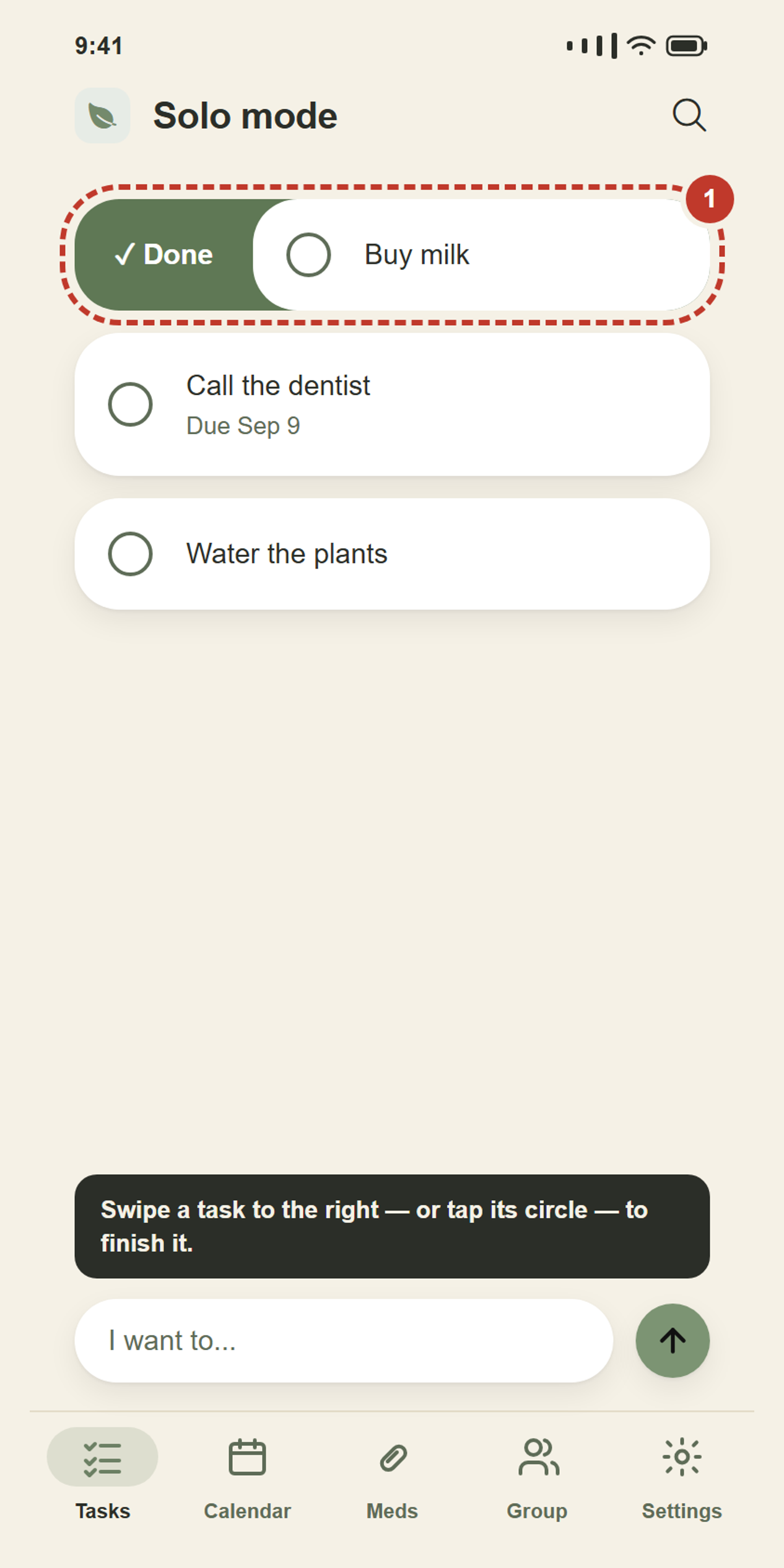
There are two ways to finish a task, and both do exactly the same thing:
- Tap the circle on the left of the task, or
- slide the task to the right with your finger. A green ✓ Done appears behind it.
7.Change a task
Tap the words of a task — not the circle — to open it. Here you can add a note, add a due date, turn on an alarm, and tap Save changes.
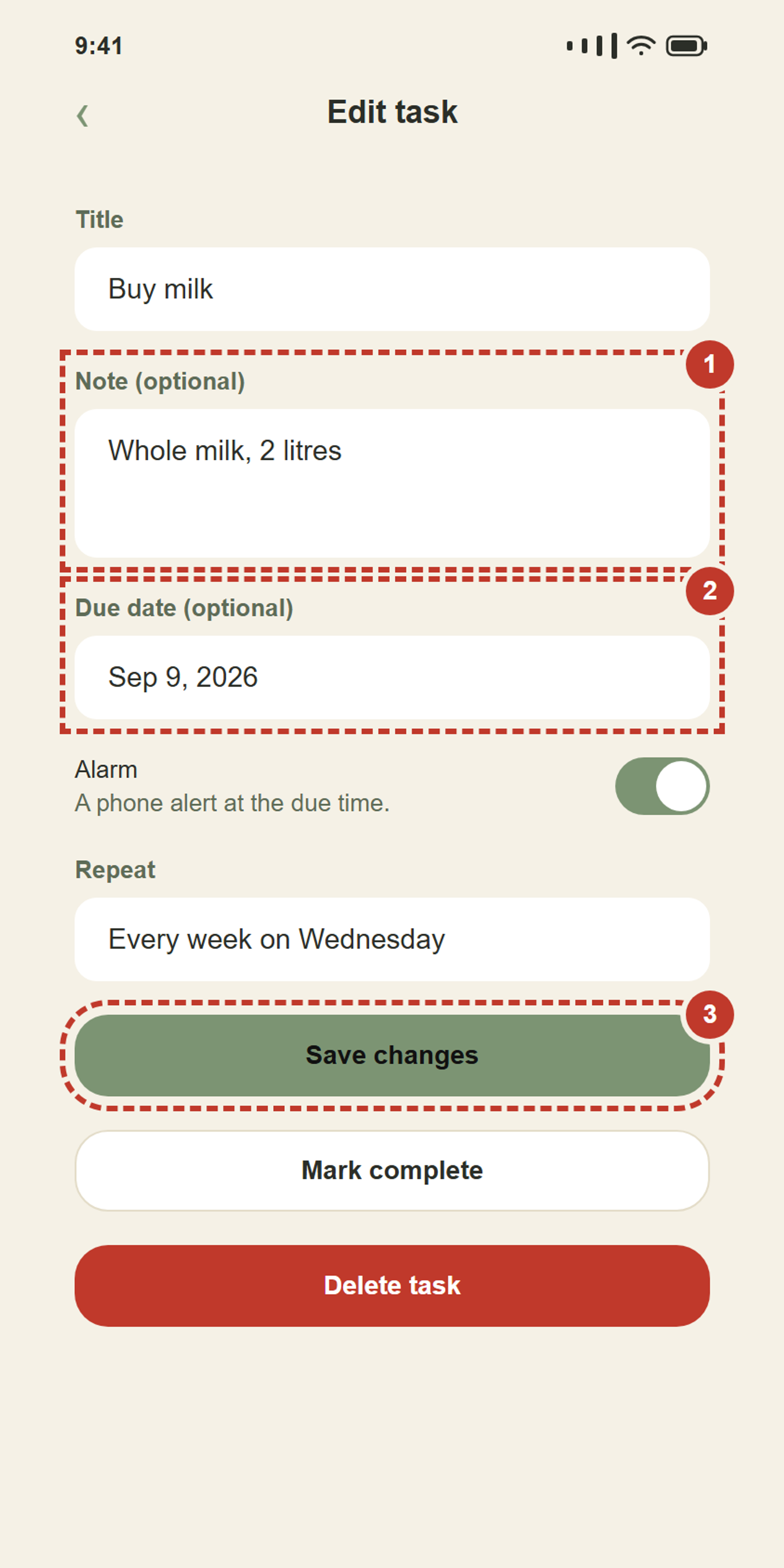
Alarm only shows up once a task has a due date — it rings your phone at that exact time, on top of the task showing on the calendar. It stays off unless you turn it on.
An alarm keeps ringing until you answer it: tap Stop alarm, Snooze, or Mark done. With Goodlist open it rings on screen; with it closed it rings again every 5 minutes until you answer it — as one notification, not a pile of them. Left closed, it can line up a couple of hours of rings; opening it lines up more, for up to 12 hours. Medicine reminders ring the same way, with Taken instead of Mark done.
Snooze waits 10 minutes by default. To change it, open Settings and pick Snooze: 5, 10, 15 or 30 minutes, for task alarms and medicine reminders alike. It applies to the next snooze.
Medicine reminders and task alarms ring with different sounds, so you can tell which is due without looking. To change either, open Settings and pick Alarm sounds: Beeps, Chime, Bell or Rising. Choosing one plays a few seconds of it. Until you change them, medicines ring with Beeps and tasks with Chime.
Need quiet for a while? In Settings, turn on Silent mode and choose how long: until you turn it off, for 1 or 8 hours, until tomorrow morning, or until a time you pick. While it is on, alarms and medicine reminders on this phone still show as a notification, but without a sound, and they do not ring later. Tasks, Meds and Calendar show a reminder that silent mode is on, with a button to turn it off.
Repeat also appears once a task has a due date. Choose Every day, Every week, Every 2 weeks, Every month on the same date or the same weekday (like the second Sunday), Choose days of the week and tap the days you want, or Choose a day each month — a date such as the 15th, or a weekday such as the last Friday. The next few show up on the calendar; on your list you see today’s, or just the next one.
Mark complete is the same as ticking the circle. Delete task throws it away completely.
8.See it all on a calendar
Tap Calendar at the bottom. Every task you gave a day to turns up on that day.
- A dot under a date means something is due that day.
- A red dot means that day has something still not done, and the day has already gone past.
- The day with a ring around it is today.
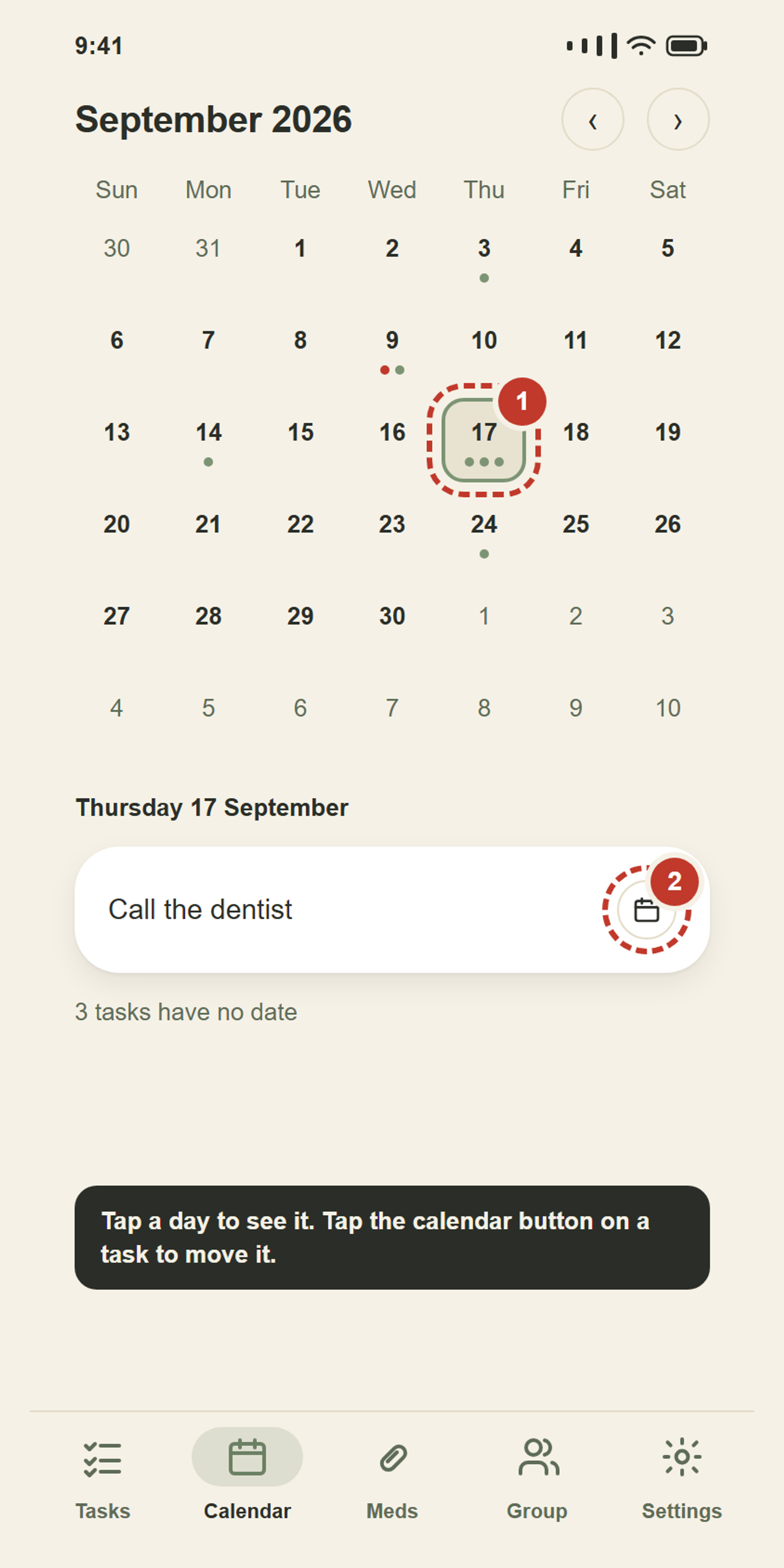
Tap a day and its tasks appear underneath, with a box for adding another one to that same day.
To move a task to a different day: tap the little calendar button on the task, then tap the day you want. Two taps, and it has moved.
9.Keep track of a medicine
Tap Meds at the bottom. Add a medicine, how often you take it, and what time — Goodlist reminds you at each dose and keeps a record.
- Tap the + button and fill in the name, the dose, and the times you take it.
- The first time you turn a reminder on, your phone asks whether Goodlist may send notifications — tap Allow, or the reminder cannot arrive.
- When a dose is due, tap Taken or Skip right from the list.
- The reminder keeps ringing until you tap Taken, Snooze or Stop alarm.
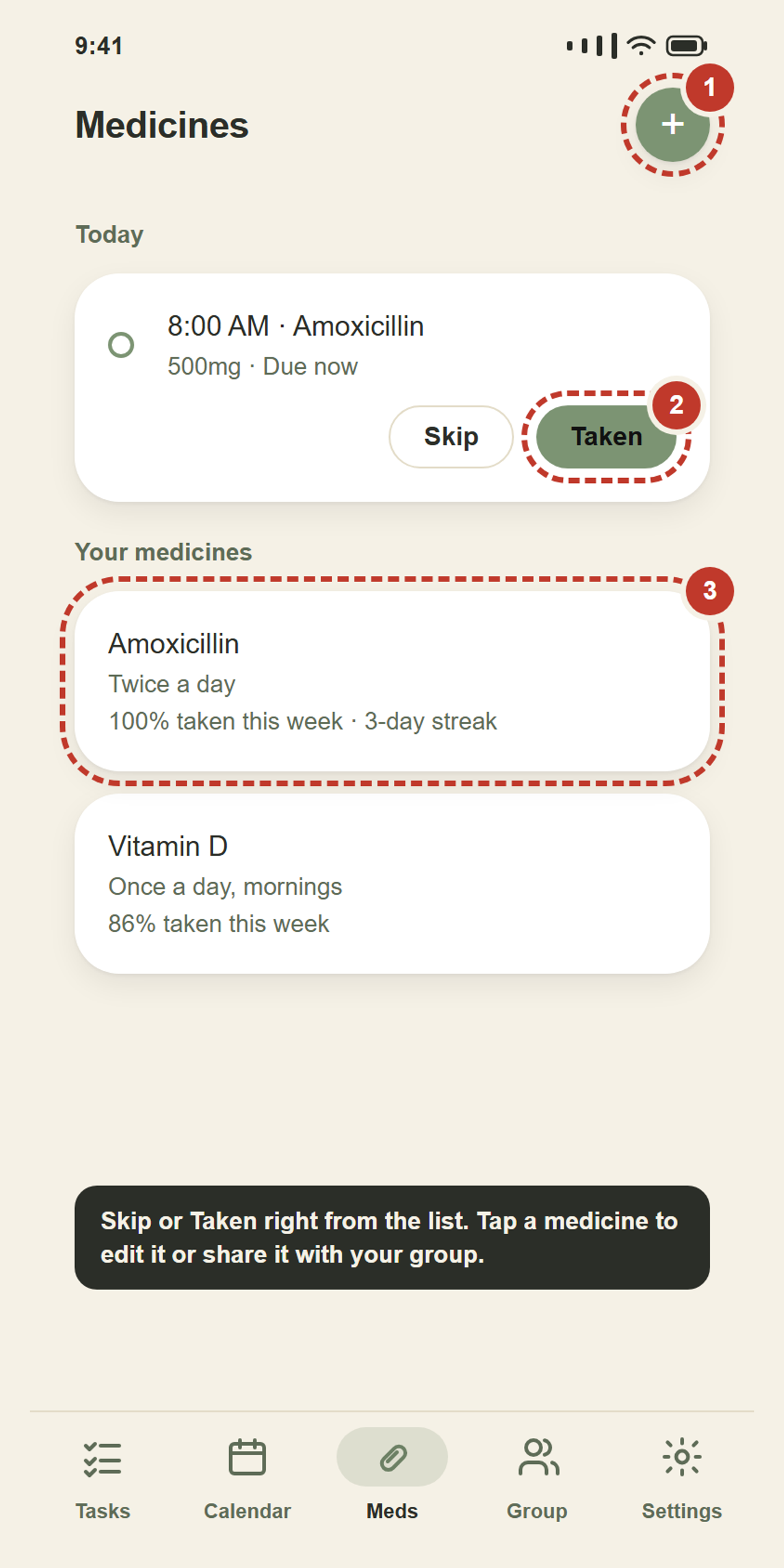
Each medicine shows how many of this week’s doses you took, and the calendar marks every past day taken, missed, or skipped.
10.Find things you finished
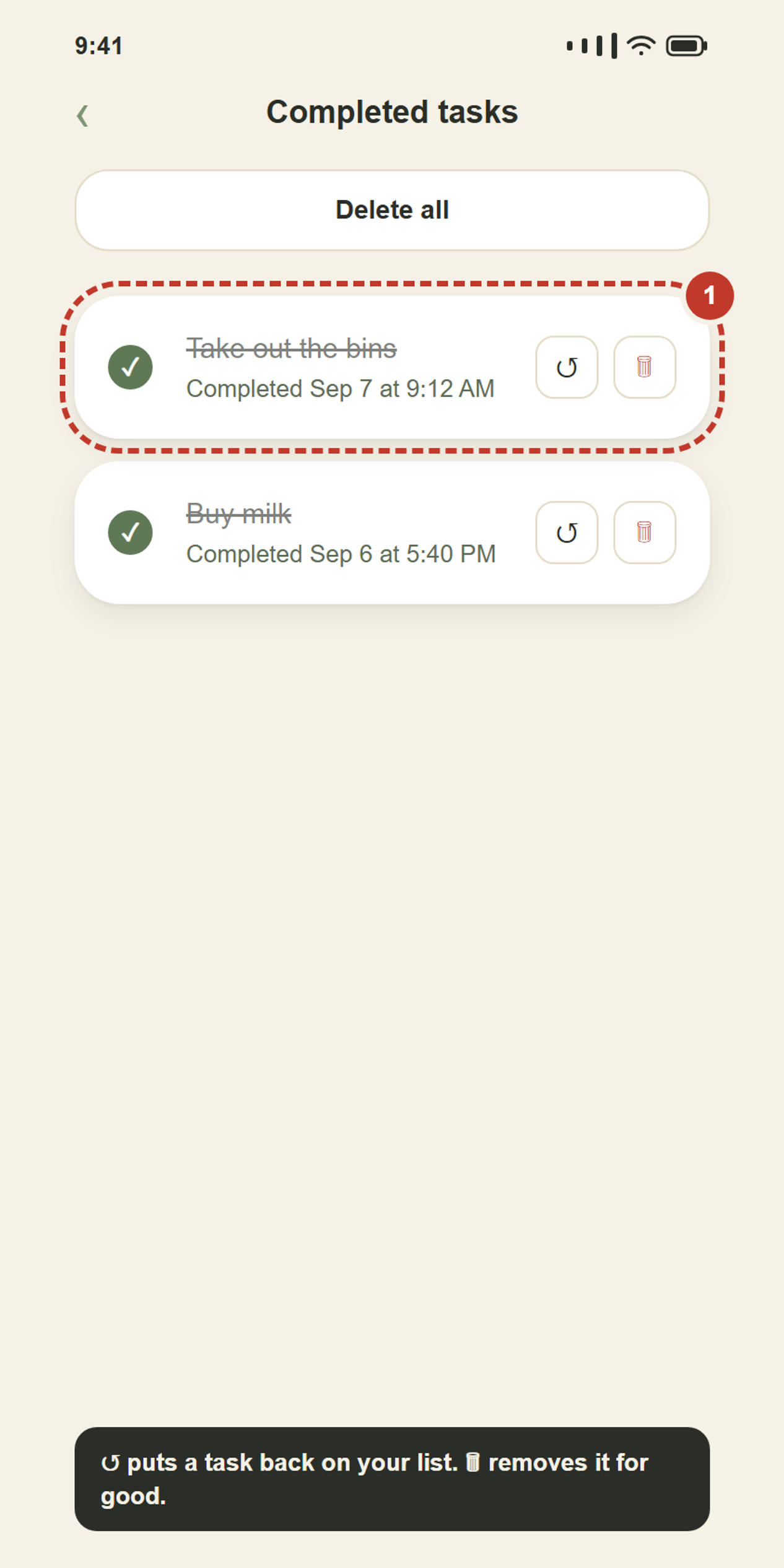
Tap Settings at the bottom, then History. Everything you have finished lives here, newest first, with the day and time you did it.
- ↺ puts a task back on your to-do list.
- 🗑 removes it forever.
Part 2 — You and other people
11.Open the Group page
Everything above still works the same. This part only adds to it. A group is a small set of people — your family, or a small team — who can ask each other to do things.
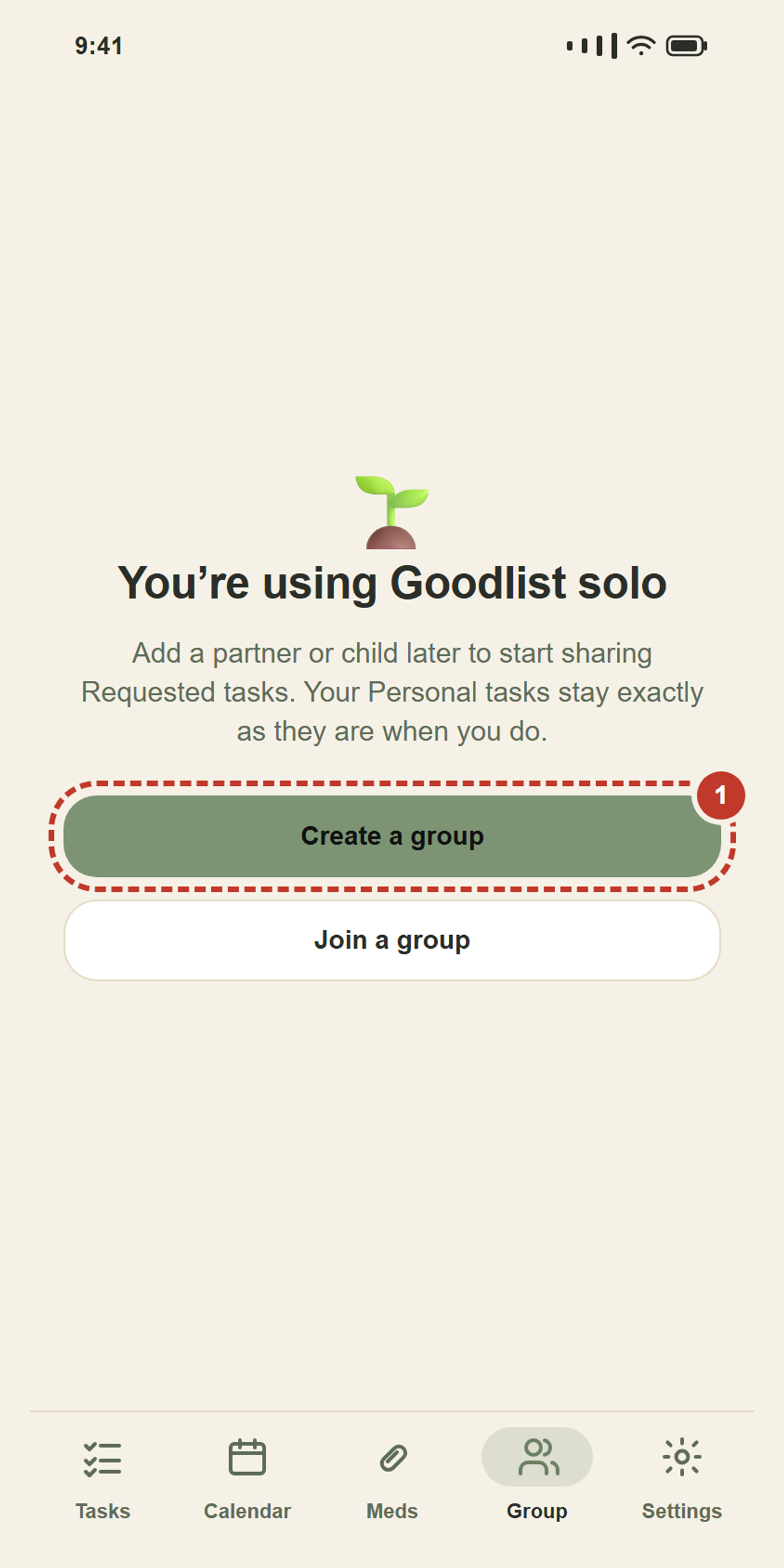
Tap Group at the bottom. You only need one of the two buttons:
- Create a group — you are the first one. Pick this if you are setting it up.
- Join a group — somebody already made one and gave you a code.
12.Make your group
- Give it a name. Anything you will recognise.
- Family or Team? Pick one. It only changes the words in the next list.
- Your role. A Family offers Father, Mother, Guardian, Child, Other. A Team offers Leader and Member.
- Tap Create group.
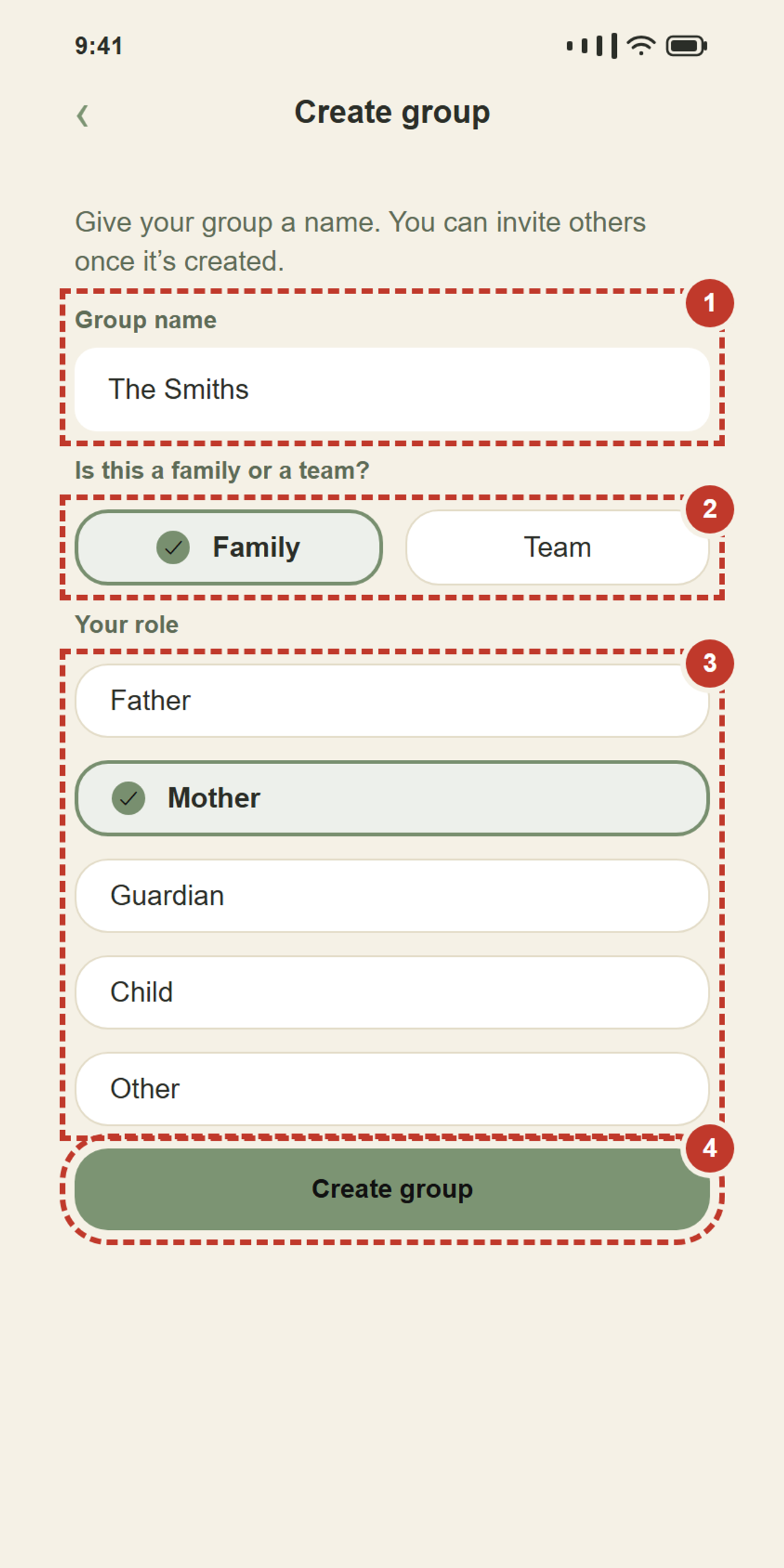
The group exists, and right now you are the only one in it.
13.Give out your code
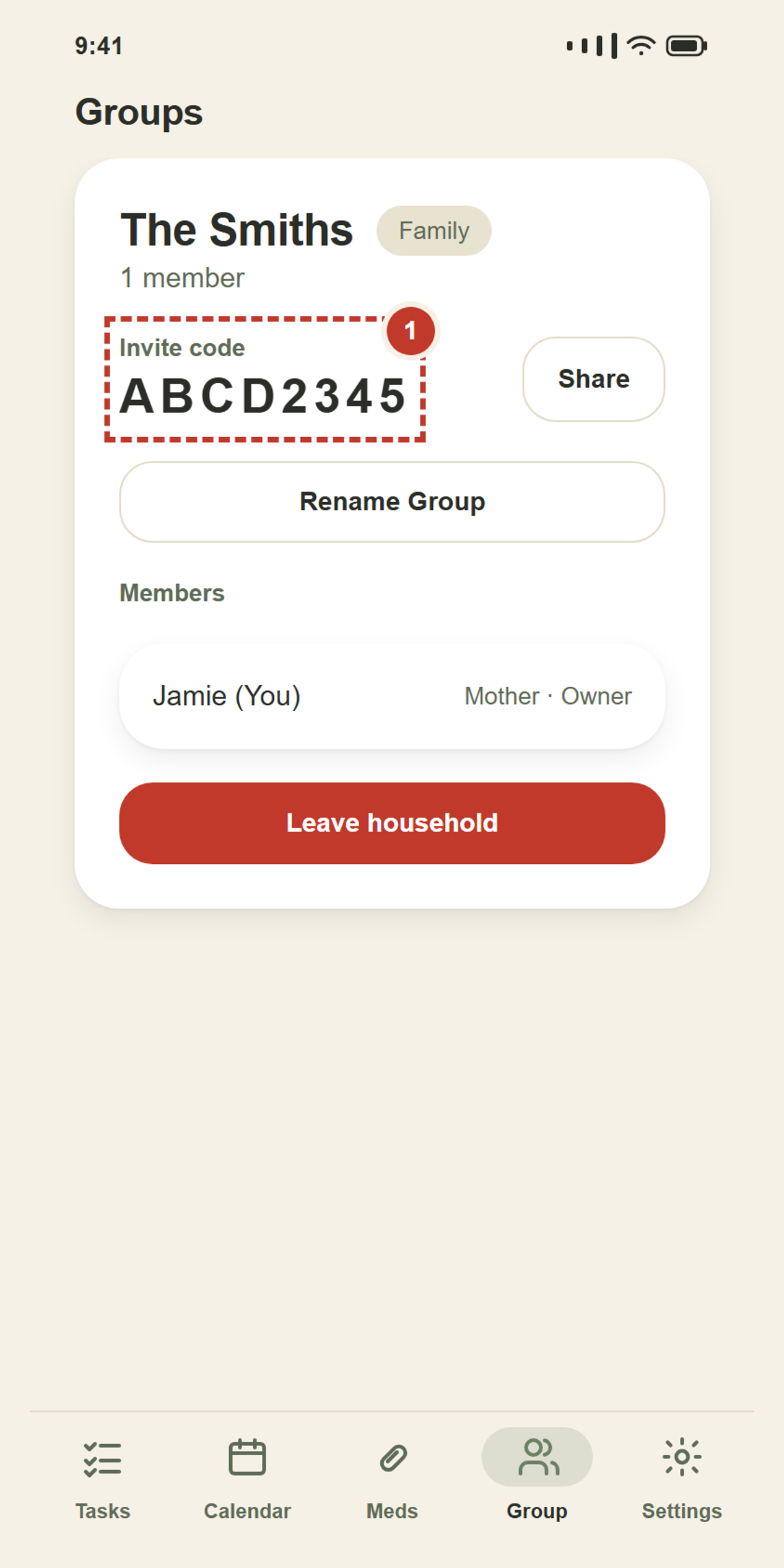
Your group now has a code — eight letters and numbers. This is how somebody joins, and nobody can get in without it.
Tap Share to send it by message or email. The message comes with links to get Goodlist: from Google Play on Android, or on the web for an iPhone or a computer. Reading the code out loud works just as well.
14.They type in the code
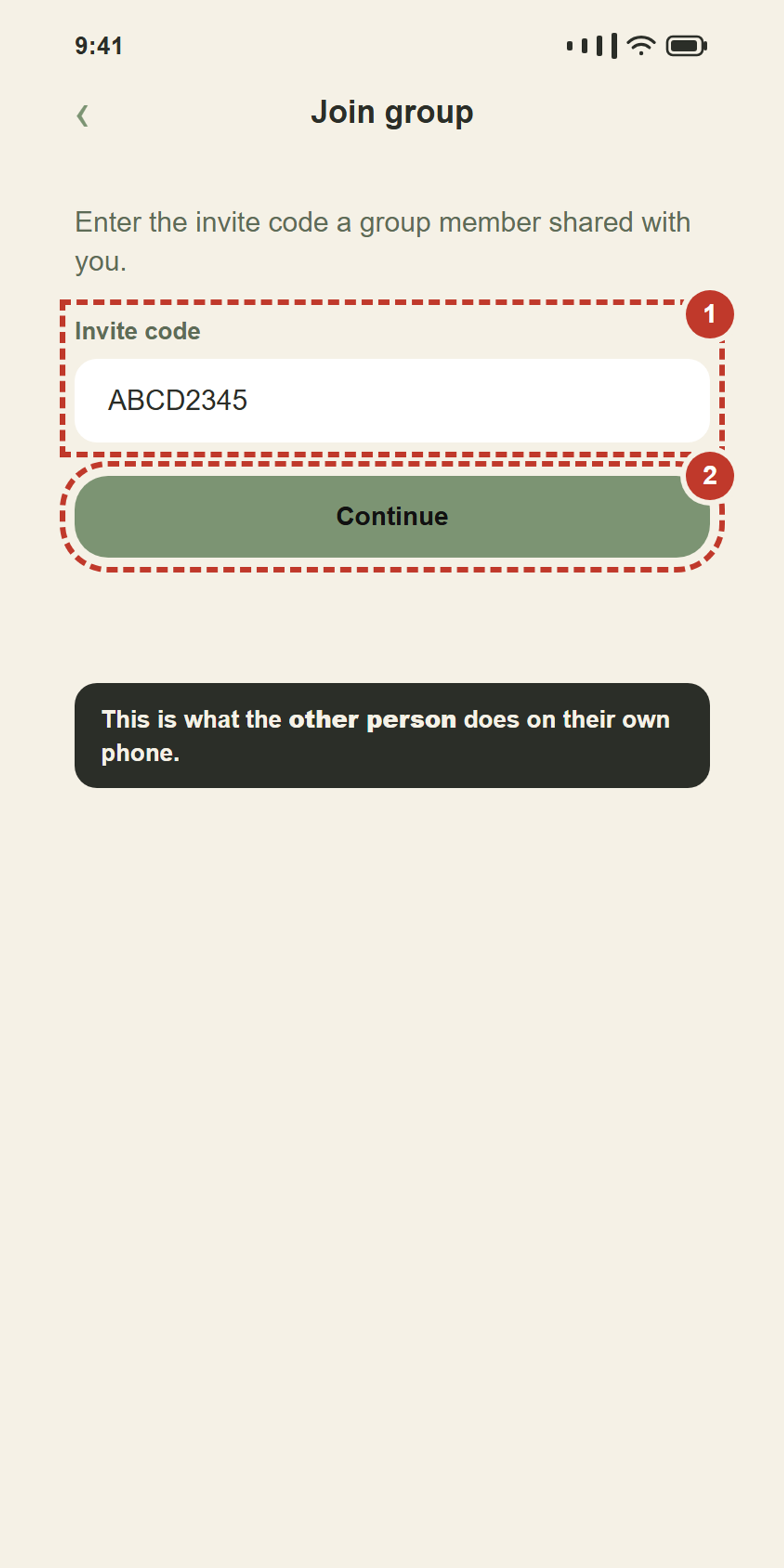
The next two steps happen on the other person’s phone, not yours.
They install Goodlist, make their own account, then tap Group, then Join a group. They type the code you gave them and tap Continue.
15.They pick who they are
The app shows them the group name so they know it is the right one. They pick their own role and tap Join group.
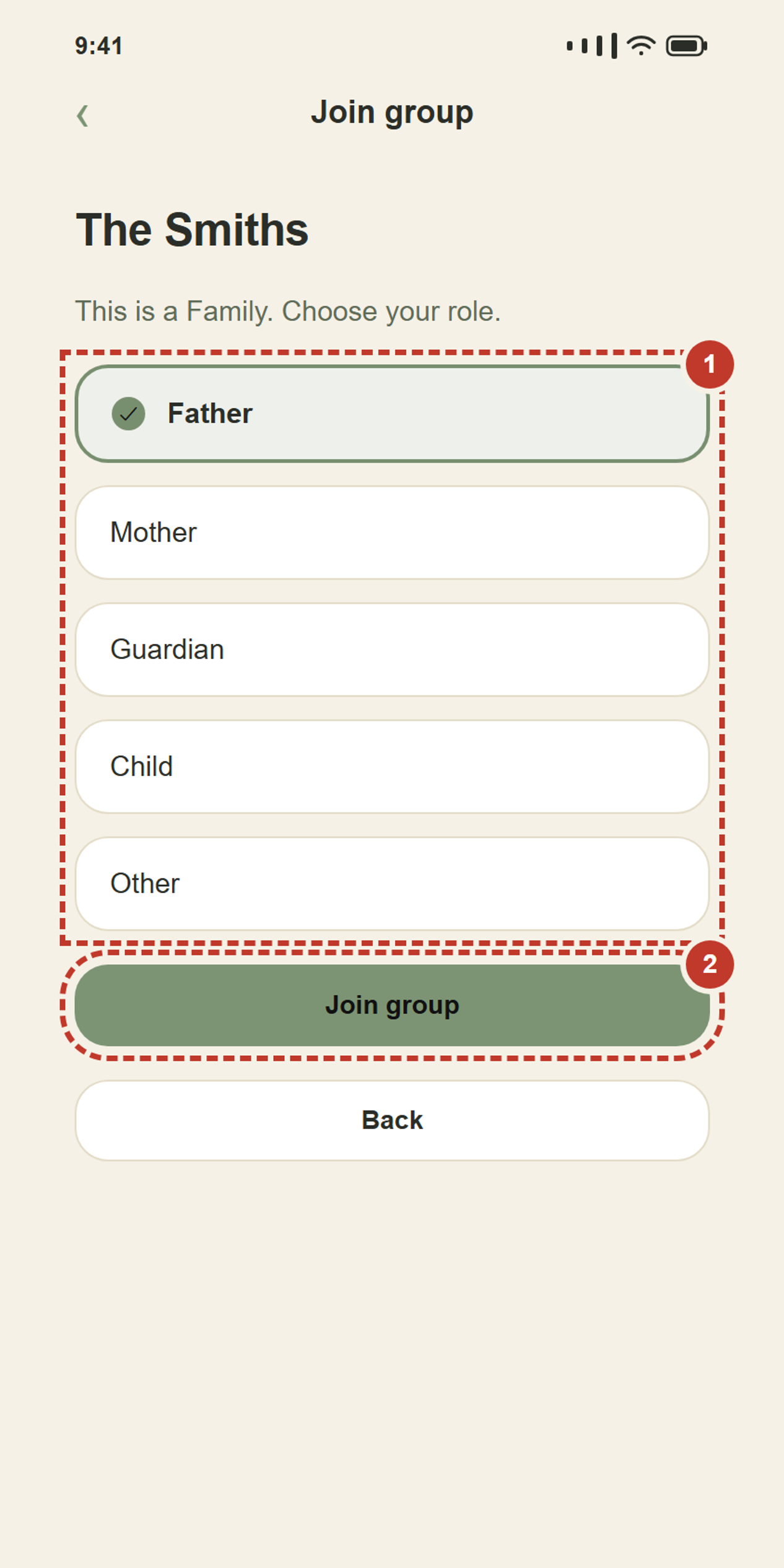
You are now in a group together, and both of you will see the other person’s name on the Group page.
16.Your list now has two parts
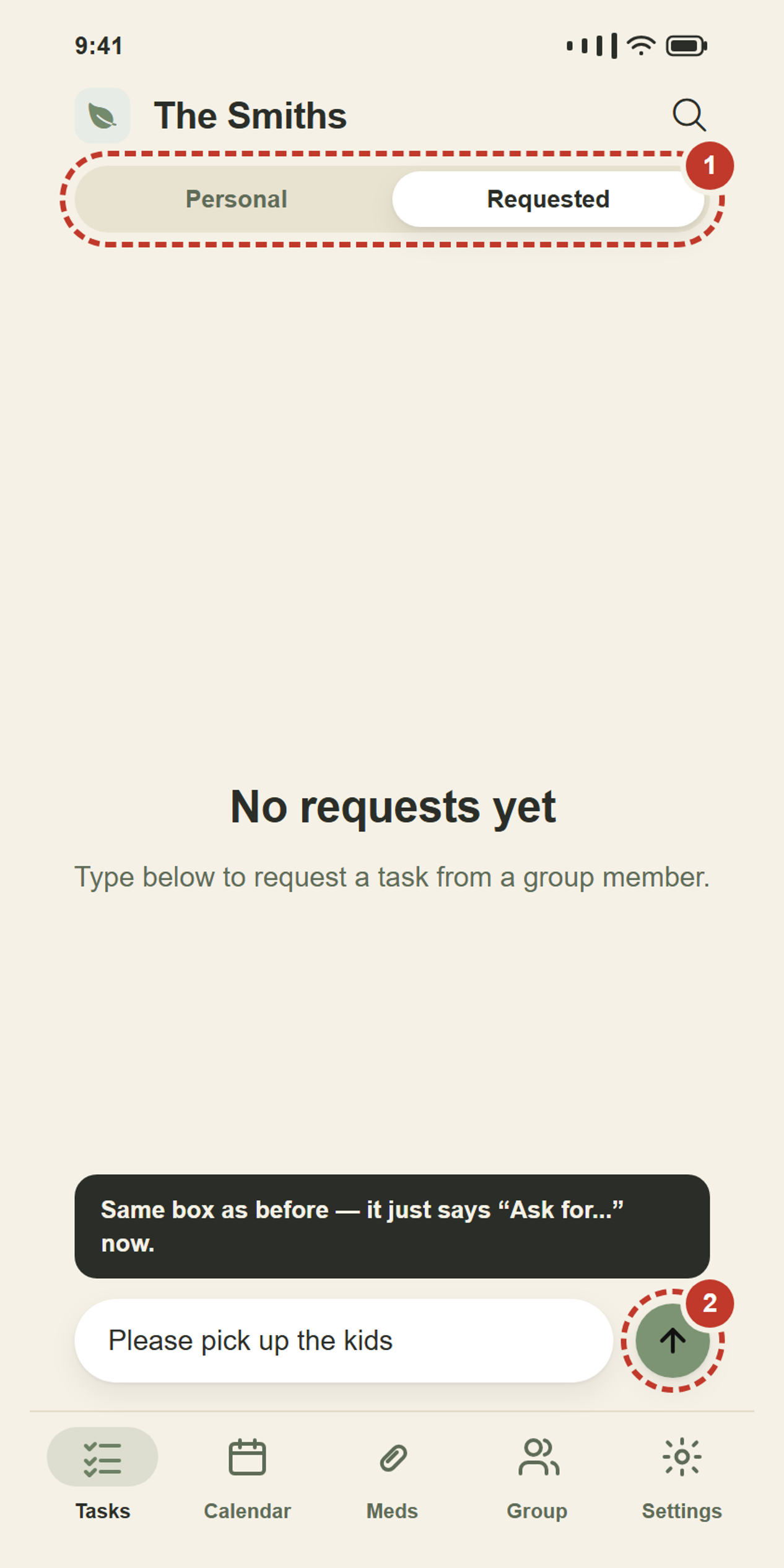
Go back to Tasks. There are two words at the top now.
- Personal — your own list, exactly as before. Still private, still only yours.
- Requested — things you and your group have asked each other to do.
The name at the very top changed too: instead of Solo mode it now shows your group’s name.
17.Ask someone to do something
Tap Requested, type what you would like them to do, and tap the green arrow.
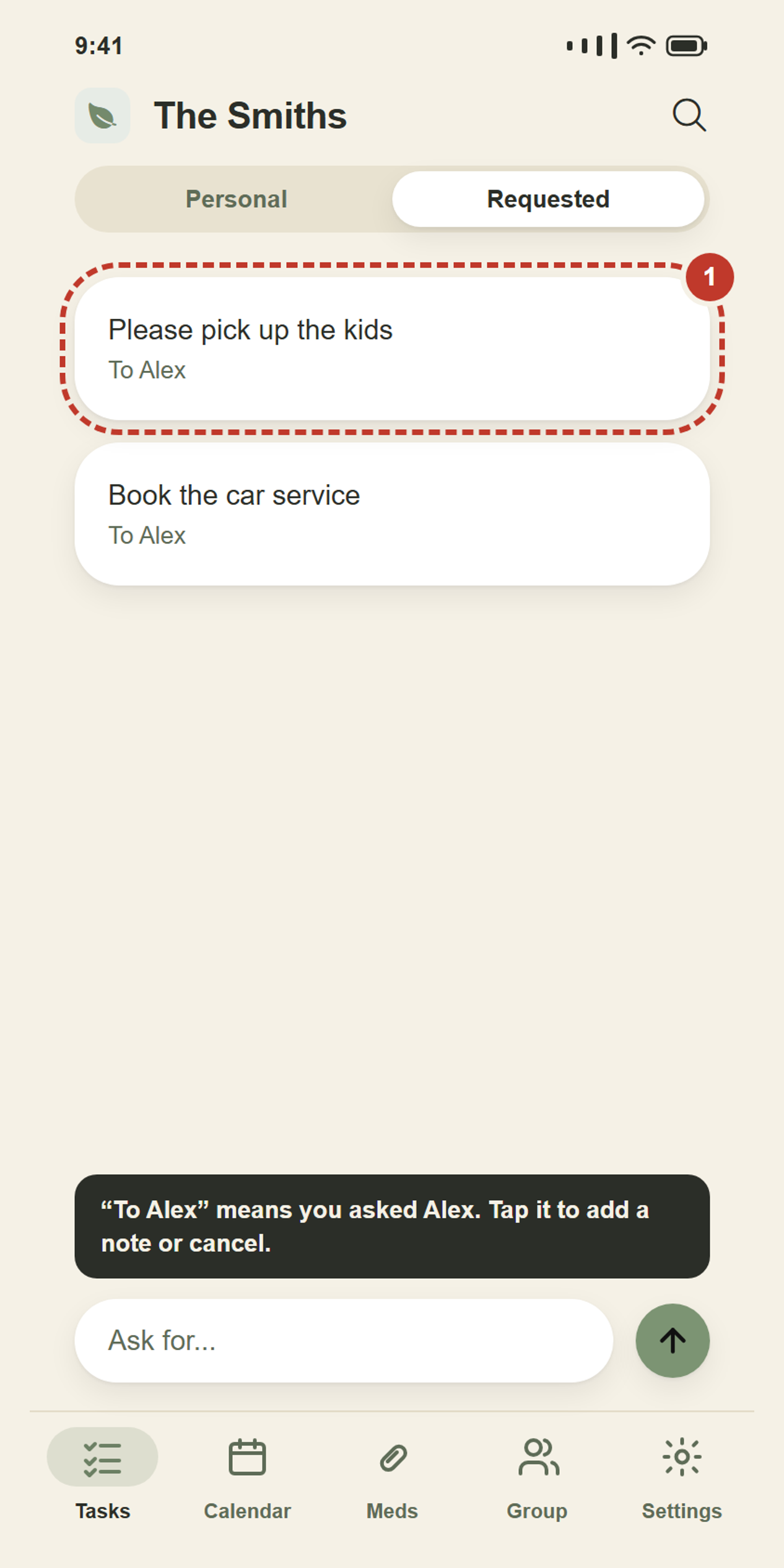
Tap it to add a note or a due date, just like before. Changed your mind? Open it and tap Cancel request.
18.What they see
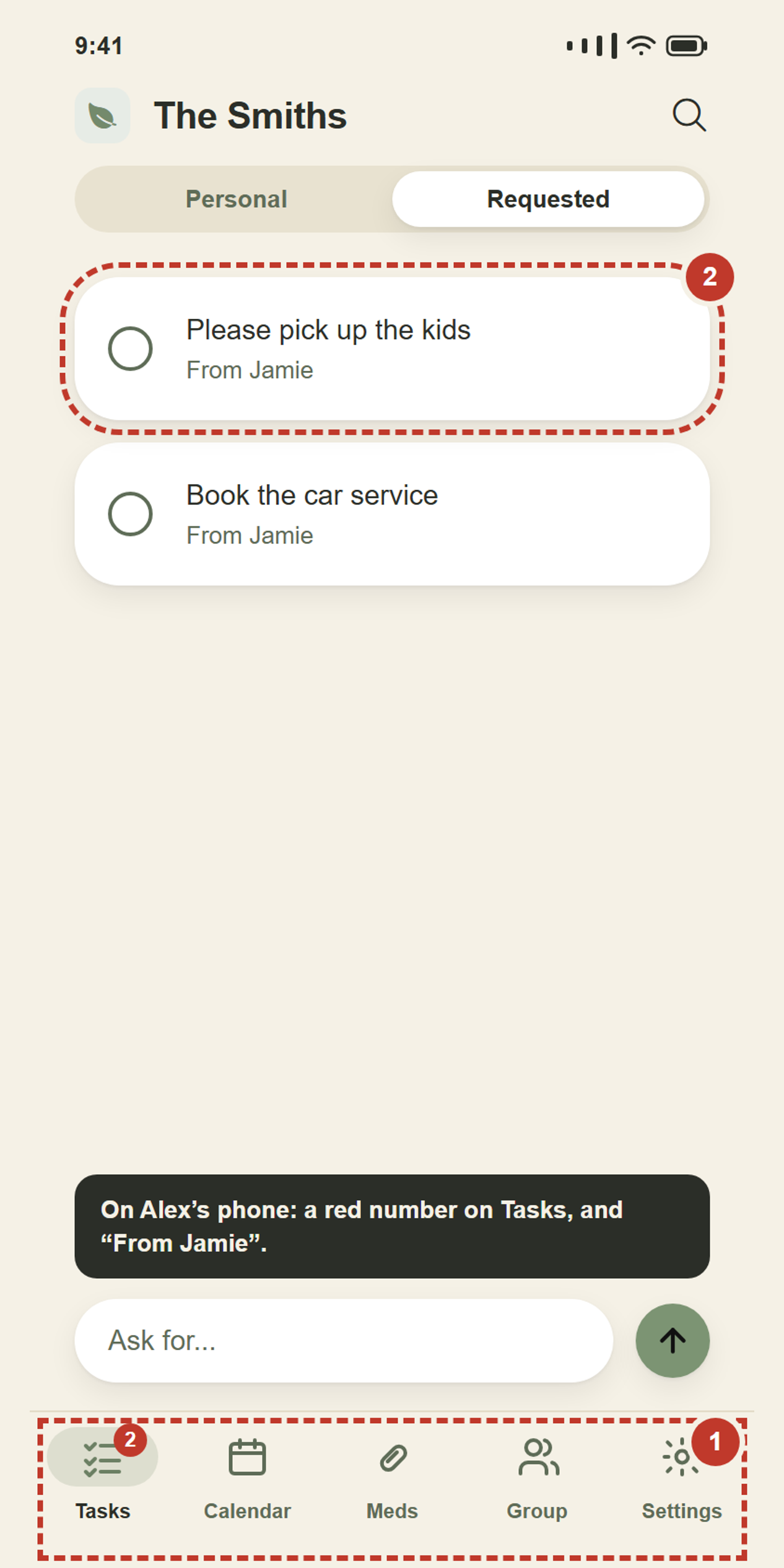
On the other person’s phone, the same task looks like this:
- A red number appears on the Tasks button — how many new requests they have. It disappears once they look.
- The task says From and your name, so they know who asked.
- They tick the circle when it is done.
The moment they tick it, it leaves your Requested list and lands in History for both of you. You do not have to refresh anything.
Nice to know
None of this is essential. It is here when you want it.
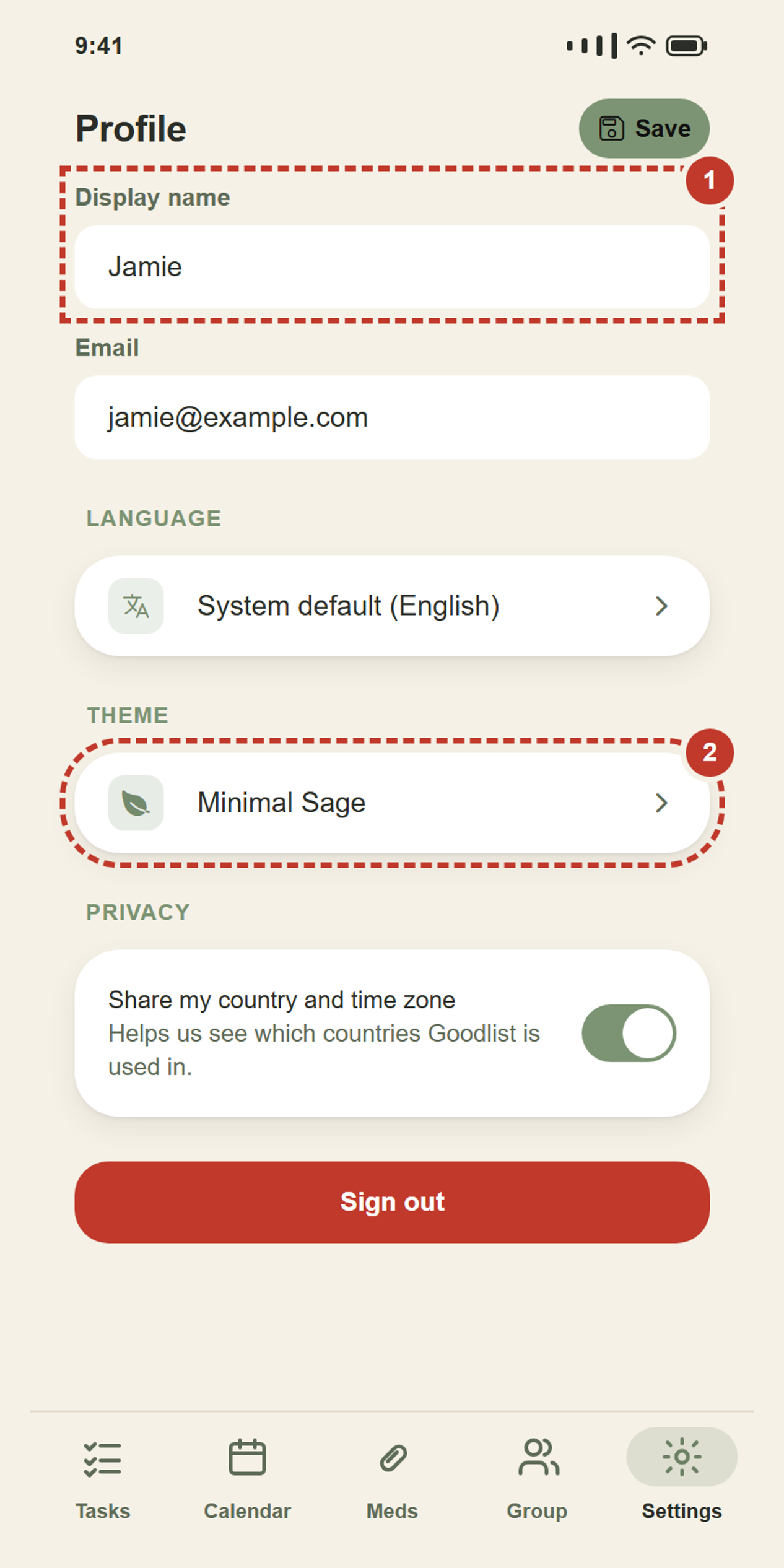
- Display name is what other people in your group see. Change it in Settings and tap Save.
- Theme changes the colours, shapes and type of the whole app — there are thirty-two, each with a little animated mascot, and three of them come with Premium. Tap it in Settings to see them all side by side, and pick whichever you like looking at.
- Language follows your phone unless you pick one of the twelve. Arabic is written right to left, so choosing it restarts the app once to turn every screen around.
- The privacy switch decides whether your country counts towards the “where is Goodlist used” numbers. It uses your phone’s time zone, never your actual location.
- Premium shows your plan. Tap it to change plan: monthly can switch to yearly or Lifetime, and yearly can go to Lifetime. Lifetime never renews or ends, but if you were paying monthly or yearly, cancel that in Google Play so it stops renewing. If Premium was given to you as a gift, it shows here like any other plan, and a time-limited gift simply ends on its own. Premium also adds Smart lists on the Tasks screen, a heads-up before alarms (Remind me before), My stats and three extra themes — everything that was free stays free.
- Enjoying Goodlist? On Android, Settings has a Rate Goodlist link that takes you to its page on Google Play. A rating there helps other people find it.
- Tell a friend, or use a computer. On your phone, Settings has Tell a friend, which sends someone a link to Goodlist, and Use Goodlist on the web, which opens the same app in a browser — sign in there on a computer or an iPhone to see your lists.
- No internet? Keep going. Add tasks and tick them off as normal. A small message says you are offline, and everything saves once your signal is back.
- Two groups, no more. A family group and a work team, but that is the limit.
- Who can delete what. Only the person who made a task can delete it. If somebody asked you to do something you can finish it or un-finish it, but not throw it away — it is theirs.
- Who is in charge of a group. Whoever made it. That person can rename it, remove somebody, or hand the job over with Make owner. Everybody else can simply leave.
If something goes wrong
It says the invite code is invalid. Check every character and type it again slowly. There is never a zero or a letter O in a code. If it still will not work, ask for a fresh copy.
It says the group is full. A group can have 5 members on the free plan, or up to 20 when its owner has Premium. Ask the owner to make room or upgrade, then try the same code again.
You tapped a circle by accident. Tap it again and it comes back. If you already left the page, go to Settings → History and tap ↺.
You cannot see a friend’s tasks. That is correct — you are not meant to. You only ever see the things somebody has specifically asked you to do.
The Requested tab is missing. It only appears once you are in a group. Go to Group and create or join one.
There is no microphone button. Not every phone and not every web browser can listen. When yours cannot, Goodlist hides the button rather than offering one that would not work — everything else carries on exactly as normal, and you can always type instead.
An alarm or medicine reminder never showed up. First check that Silent mode is off (Settings). Then open the Calendar: if something is stopping alarms, a box at the top says so, with a button to fix it (Allow alarms, Allow exact alarms, or Open settings). Goodlist needs to be allowed to send notifications — and on Android, “Alarms & reminders” turned on so it rings on the minute rather than a few minutes late. A reminder can also be delayed if the phone was off or in a deep sleep at the time.
You cannot delete your account. If you own a group that still has other people in it, Goodlist stops you — otherwise you would take their group away. Hand it over with Make owner, or remove the other members first.